How to Automatically Pull, Sync, and Analyze Your Amazon "FBA Reimbursements" Report in Google Sheets
Amazon owes you money. It’s a fact of FBA life: inventory gets lost in the warehouse, damaged by forklifts, or "returned" by customers who never actually send the box back. While Amazon tries to reimburse you automatically, they miss millions of dollars in claims every year. The FBA Reimbursements Report is your ledger of what has been paid back to you—and by exclusion, what hasn't. This guide shows you how to stop manually downloading CSVs and start auditing your cash. We'll cover how to automatically pull your Reimbursements report directly into Google Sheets to build a live "Recovery Dashboard."

How to Automatically Sync & Import the FBA Reimbursements Report to Google Sheets (The Hopted Way)
Using an Amazon to Google Sheets integration like Hopted, you set up the connection once, and your data flows automatically.
Step 1.
Install the Hopted browser extension and sign in using your Google Account.
Step 2.
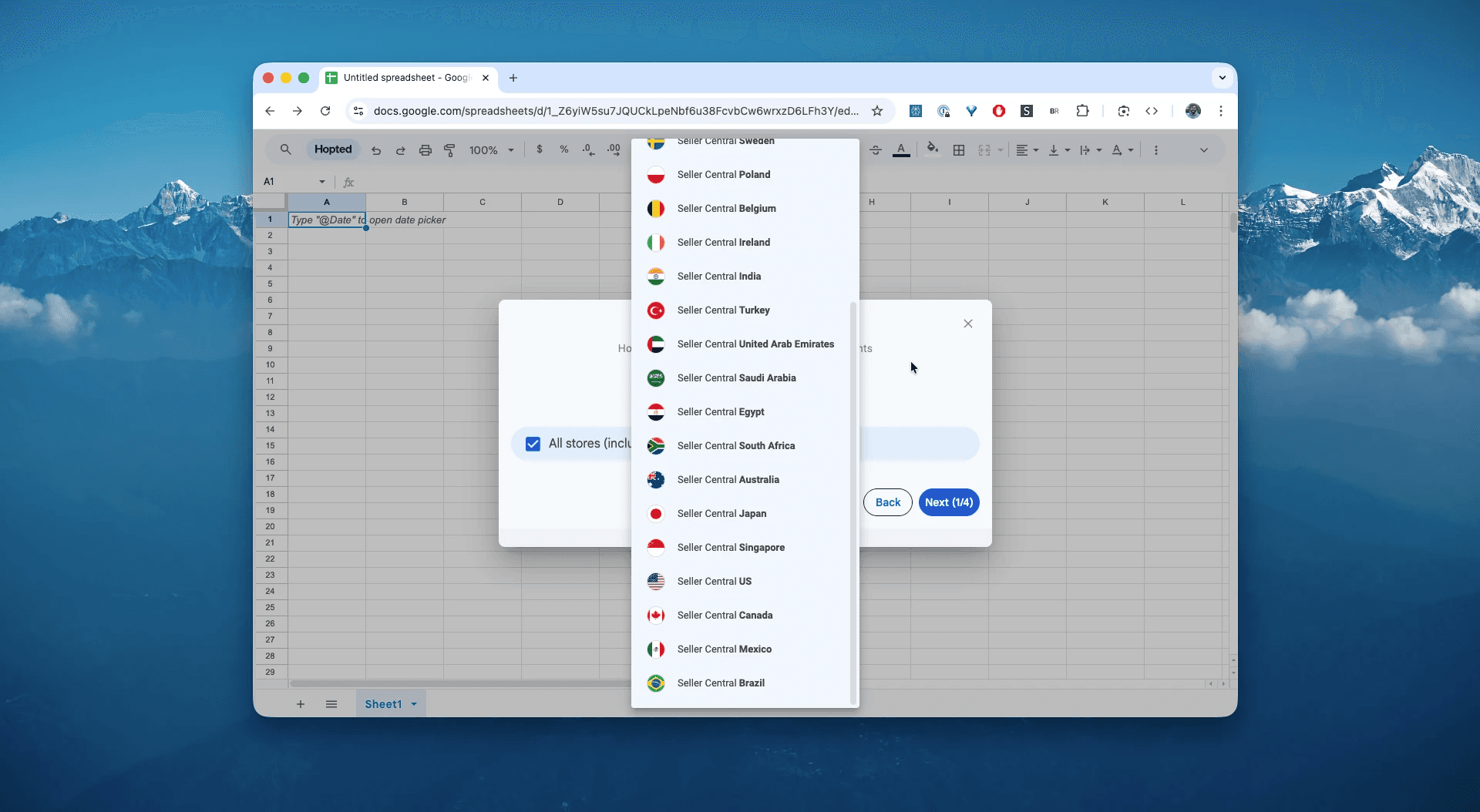
Securely connect your Amazon Seller Central to Google Sheets using Hopted's integration wizard.
Step 3.
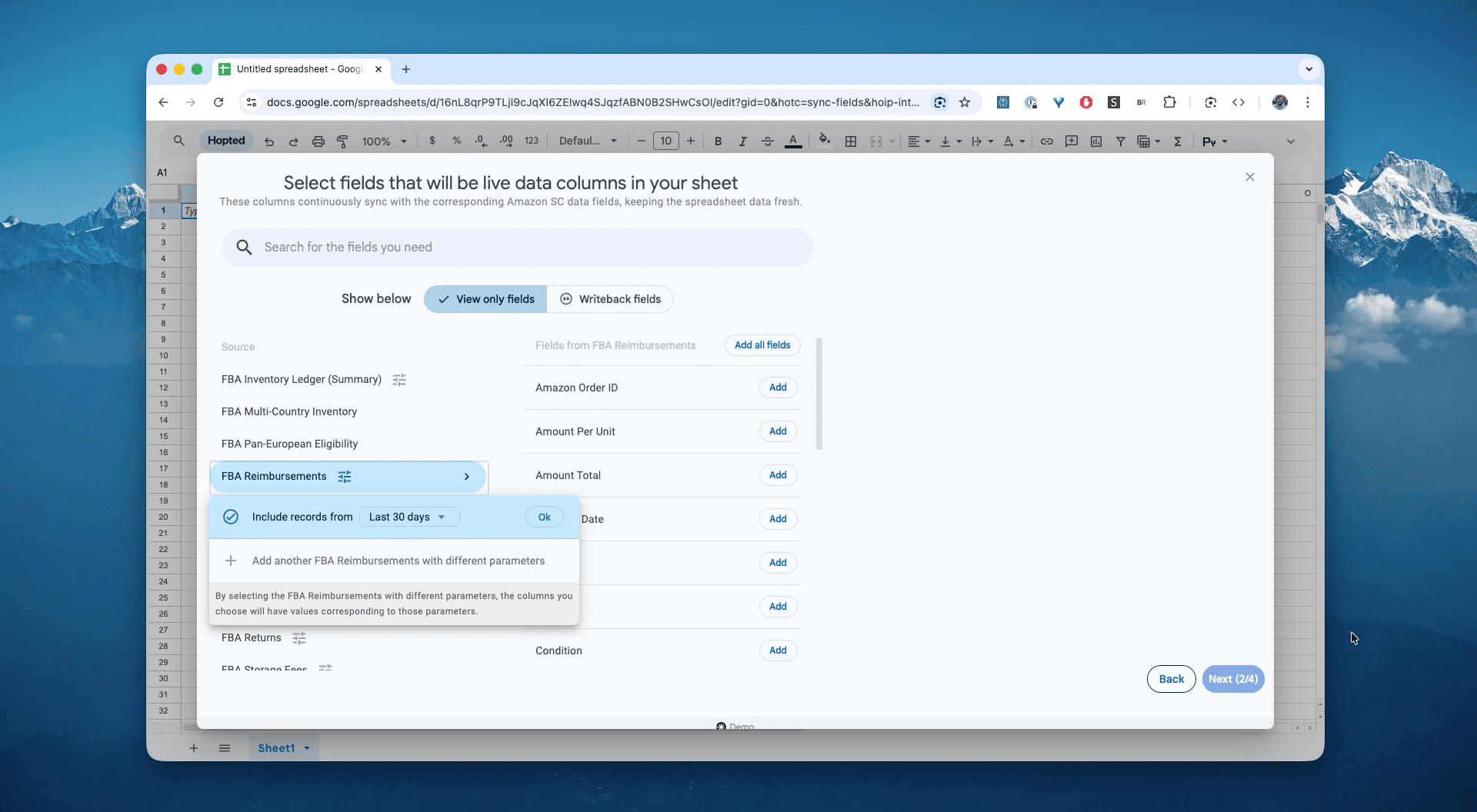
In Google Sheets, from the list of available Amazon Seller Central reports, select "FBA Reimbursements" for a specific date range. This can be as recent as the "Last 24 hours" or a custom range going as far back as 35 months. For this example, we'll select "Include records for the last 30 days".
Step 4.
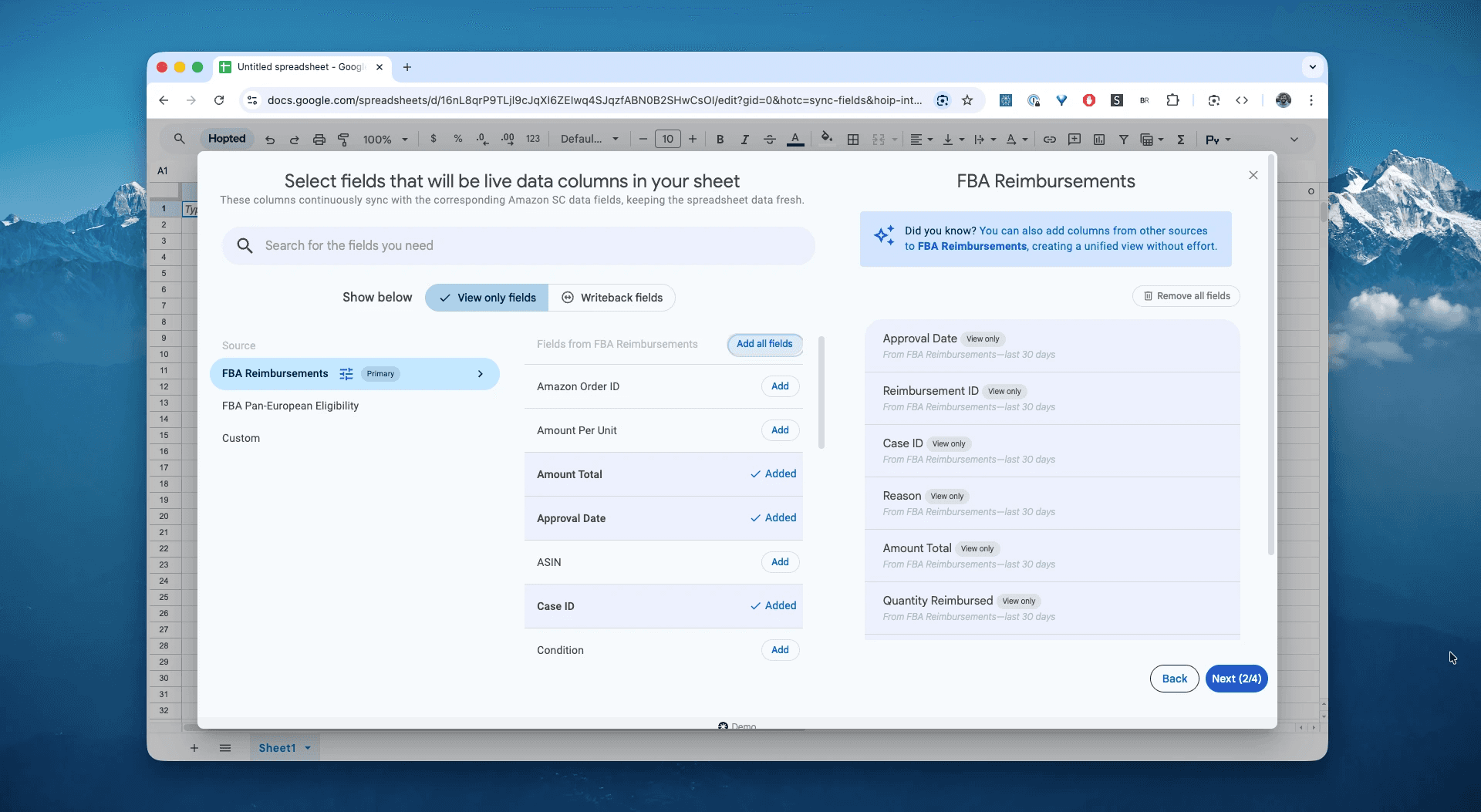
Select columns that you need: approval-date, reimbursement-id, case-id, reason, amount-total, quantity-reimbursed-cash, quantity-reimbursed-inventory, and sku.
Step 5.
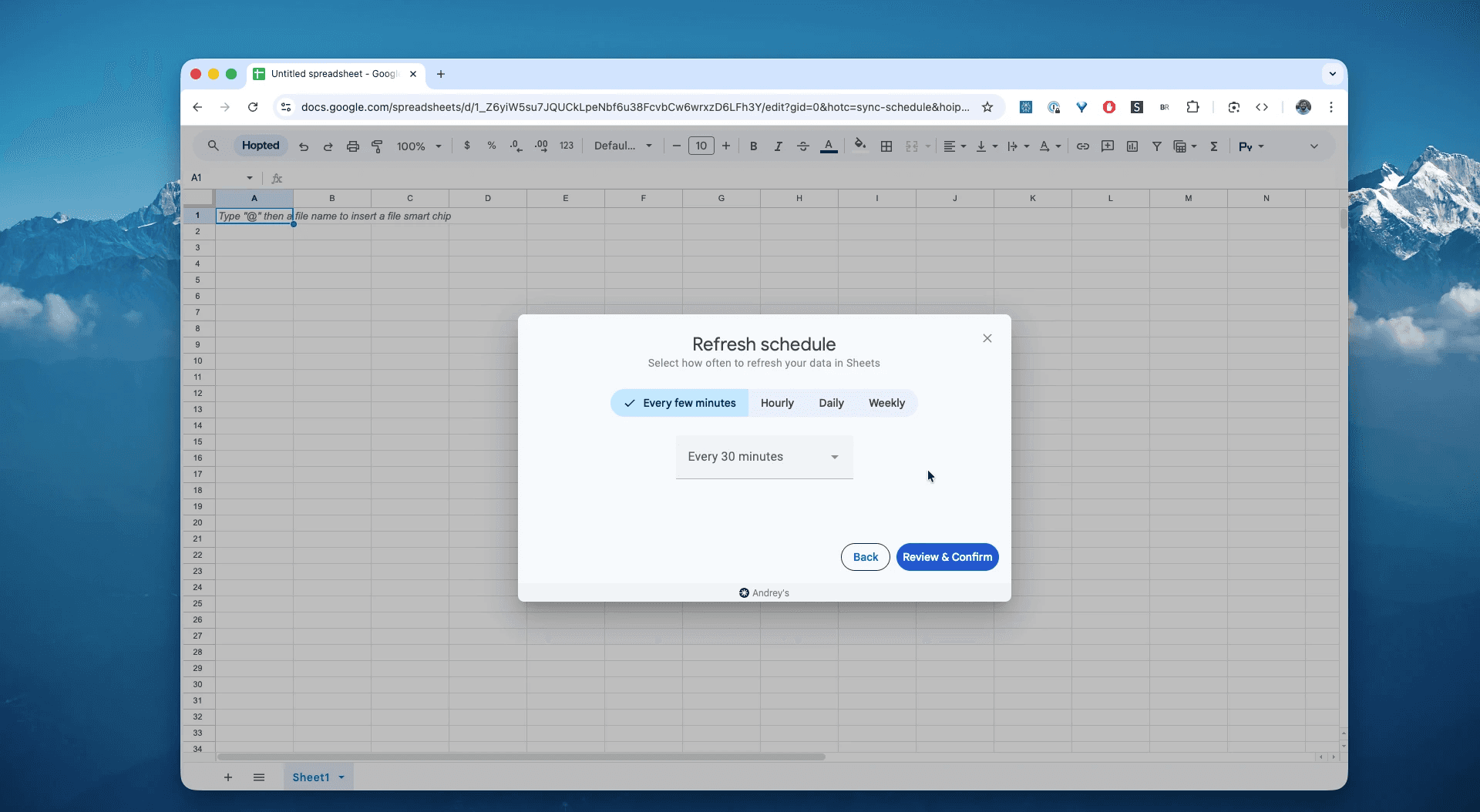
Set your schedule. Choose how often you want to export and refresh your reimbursement data—we recommend a Weekly schedule, as reimbursements can take up to 5 days to appear after approval.
Step 6.
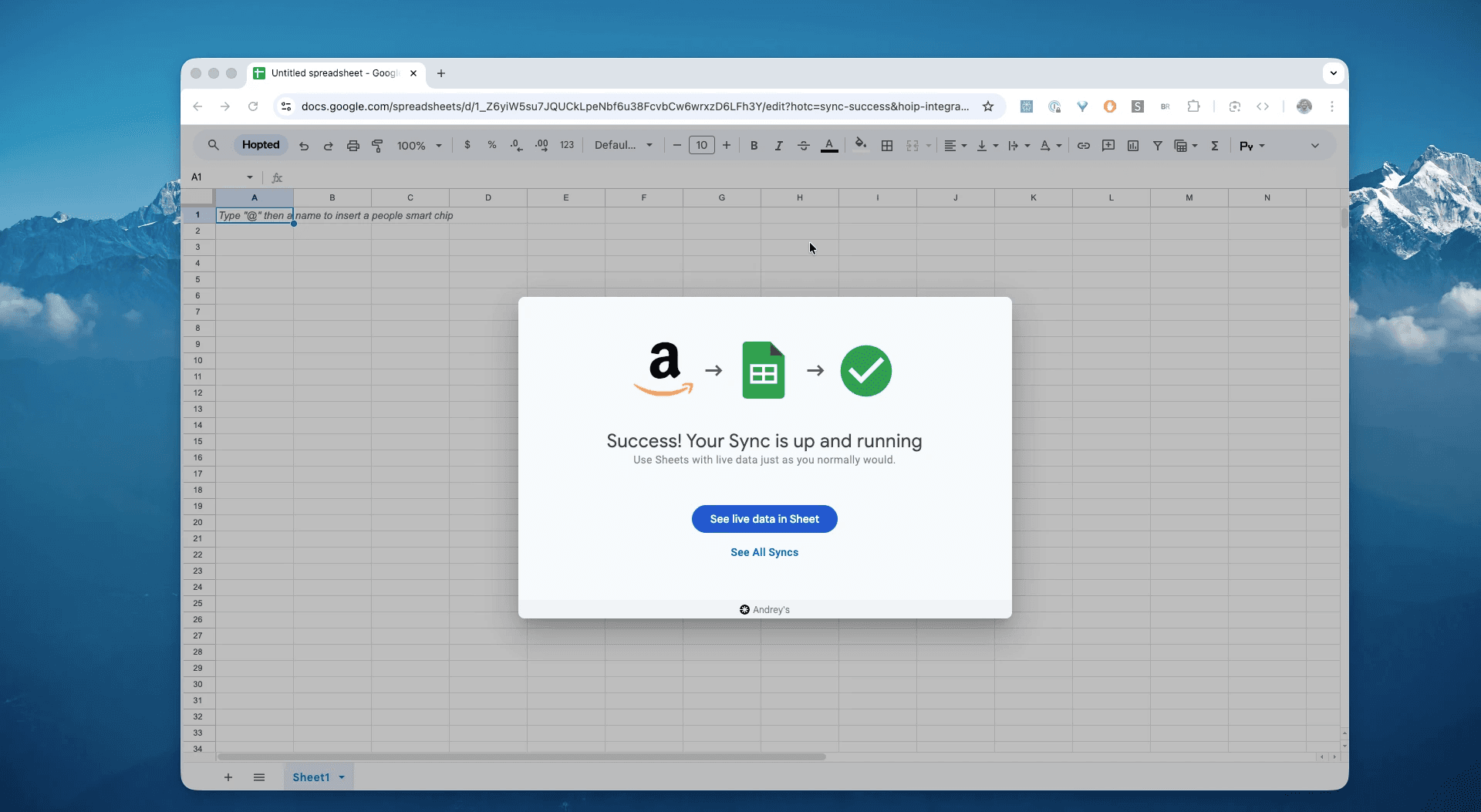
Save your data pipeline. This will export your history of recovered funds from Seller Central into spreadsheets instead of dealing with CSVs. Your financial recovery data will be up to date forever.
What is the Amazon FBA Reimbursements Report?
This report provides itemized details of every single reimbursement you have received from Amazon. It covers funds returned to you for:
Lost Inventory: Items that vanished from the Fulfillment Center.
Damaged Inventory: Items crushed or destroyed by Amazon employees (Warehouse Damaged).
Customer Returns: Refunds issued to customers where the unit was never returned to FBA.
Crucially, this report distinguishes between Cash Reimbursements (money deposited to your account) and Inventory Reimbursements (where Amazon replaces the lost unit with a new one).
This makes it the single source of truth for answering questions like:
How much cash did Amazon reimburse me last month vs. replacing with stock?Has the claim I filed for those 50 lost units actually been paid out yet?Is a specific SKU suffering from repeated "Warehouse Damage," indicating a packaging issue?Did I get reimbursed for that customer return where the buyer kept the item?Are my reimbursements matching the "Adjustments" seen in my Inventory Ledger?
How to Analyze & Track Your FBA Reimbursements in Spreadsheets
Now that you have a live feed, you can move from data entry to data analysis. This is the real power of analyzing your Amazon Seller Central data in spreadsheets and building your Amazon excel-like template.
Here are 3 Amazon spreadsheet template ideas you can build immediately:
Template 1: The "Cash Recovery" Dashboard
Your accountant needs to know this number. Reimbursements are taxable income (or cost recovery), but they are often buried in Settlement reports.
How to build it:
Pivot Table Rows:
approval-date(Group by Month).Pivot Table Values:
SUM of amount-total.Filter: Exclude rows where
amount-totalis 0 (these are inventory replacements).What it shows you: A clean, monthly ledger of cash flow entering your business specifically from FBA errors. This is vital for accurate P&L statements.
Template 2: The "Damage Control" Monitor
If Amazon keeps damaging the same product, you have a packaging problem, not just a reimbursement problem.
How to build it:
Pivot Table Rows:
product-nameorsku.Pivot Table Columns:
reason(e.g.,Damaged_Warehouse,Lost_Warehouse).Pivot Table Values:
COUNT of reimbursement-id.Sort: Descending by Grand Total.
What it shows you: If one SKU has 50 "Damaged_Warehouse" events, your packaging is likely too flimsy for Amazon's conveyor belts. Strengthening the box could save you the headache of filing claims in the first place.
Template 3: The "Replacement vs. Cash" Split
Amazon prefers to replace your lost inventory with a new unit (often found elsewhere) rather than paying you cash. This affects your inventory planning.
How to build it:
Formula: Calculate the ratio of
SUM(quantity-reimbursed-cash)vsSUM(quantity-reimbursed-inventory).What it shows you: If Amazon is mostly replacing inventory, you don't need to reorder as aggressively. If they are mostly paying cash, your stock levels are physically dropping, and you need to send in a replenishment shipment immediately.
Common workflows this report unlocks
Accounting Reconciliation: Match every dollar in your bank account "Misc" column to a specific lost unit.
Claim Verification: Verify that "Case ID 12345" from your support ticket actually resulted in a payout.
COGS Adjustment: Remove reimbursed units from your "Closing Stock" value to avoid paying tax on inventory you no longer have.
Packaging Optimization: Identify products that are disproportionately damaged in the warehouse.
FAQ about Amazon FBA Reimbursements
Q: What is the difference between quantity-reimbursed-cash and quantity-reimbursed-inventory?
Cash: Amazon paid you money for the lost item. The unit is gone.
Inventory: Amazon found a unit (or transferred one from another holding) and added it to your stock to replace the lost one. You get no cash, but your stock count goes back up.
Q: How far back can I claim reimbursements? For most claim types (like lost/damaged in warehouse), Amazon allows you to file claims for up to 18 months. However, recent policy changes for some claim types are shortening this window. It is critical to audit this report monthly so you never miss a deadline.
Q: Why is my reimbursement amount lower than my selling price? Amazon reimburses based on the estimated proceeds of the sale, not the full retail price. They deduct the FBA fees and referral fees you would have paid if the item sold naturally. They may also use average selling price over time, not your current list price.
Q: Can I automate the filing of claims? No, you cannot fully automate the filing (Amazon requires manual review or specific tools), but you can automate the auditing using Hopted. By syncing this report and the Inventory Ledger, you can instantly spot discrepancies (e.g., "Ledger says Lost, Reimbursement says 0") to know exactly what to file.
Q: Does this report show reimbursements for Lost Inbound Shipments? Yes. If you reconcile a shipment and Amazon admits fault, the payout will appear here, usually with the reason Lost_Inbound.
Q: What does "Original Reimbursement ID" mean? If Amazon makes a mistake on a reimbursement (e.g., pays you, then finds the item later), they may "Reverse" the reimbursement. This column links the reversal transaction back to the original payout so you can track the full chain of events.
Q: How is Hopted different from other Amazon seller software? Most Amazon tools force you into their rigid dashboards and pre-built reports. You have to change your workflow to fit their software. With Hopted it is the opposite. It’s a flexible data automation layer that works directly inside your existing spreadsheets (like Google Sheets). Instead of forcing you to learn a new system, Hopted brings all your scattered Amazon data (sales, inventory, orders, etc.) right to you. You can build the fully custom reports and automations you need, not the ones a rigid tool dictates.
Amazon Seller Central report reference
Source note: Links in this reference section point to Amazon Seller Central report and help documentation where available.
The Reimbursements report provides itemized details for all reimbursements, including those requested by you and those that are generated automatically.
Reimbursements appear in your account 4-5 days after the reimbursement is approved.
For the reimbursements that you requested, use the case ID in the report to view the details. For reimbursements associated with a customer refund, use the Amazon order ID in the report to view the details.
Reimbursements can take up to five days to appear in the report after they have been approved. When more than one reimbursement is processed on the same day for the same issue, they may be combined into a single transaction.
Hopted can automatically pull Amazon FBA reimbursement report records from Seller Central into Google Sheets spreadsheets. Try it here.
Learn more about Amazon FBA inventory reimbursement policy.
Available fields in the report
approval-date
The date the reimbursement was approved.
reimbursement-id
The unique identifier for this reimbursement. Each reimbursement may include multiple line items.
case-id
The unique identifier assigned to the case when you request a reimbursement.
amazon-order-id
The unique identifier assigned to the customer order. This field is empty if the reimbursement is not associated with an order.
reason
The reason for the reimbursement (for example, Damaged: Warehouse).
Sku
The merchant SKU (stock keeping unit) is the unique identifier you assigned to your product.
fnsku
The fulfillment network SKU (stock keeping unit) is the unique identifier Fulfillment by Amazon assigned to your product.
asin
An ASIN (Amazon Standard Identification Numbers) is a unique identifier assigned by Amazon to products in the Amazon product catalog. The ASIN can be found on the product detail page.
product-name
The name of your product.
condition
The condition of your item (for example, New).
quantity
The total number of units reimbursed for this line item.
currency-unit
The currency for the applicable marketplace.
amount-per-unit
The per-unit reimbursement amount for this line item.
quantity-reimbursed-cash
The total number of units reimbursed with cash.
amount-total
The total amount of the cash reimbursement for this line item.
quantity-reimbursed-inventory
The number of units reimbursed with inventory.
quantity-reimbursed-total
The total number of units reimbursed with either cash or inventory (Quantity Reimbursed [Cash] + Quantity Reimbursed [Inventory]).