How to Automatically Pull, Sync, and Analyze Your Amazon "FBA Inventory Ledger (Summary)" Report in Google Sheets
The FBA Inventory Ledger (Summary) Report is built to answer these "big picture" questions. Are your damaged units increasing? Are your customer returns stable? Are your warehouse receipts keeping pace with your shipments? This guide shows you how to stop managing static reports and start building a live dashboard. We'll cover how to automatically pull your Inventory Ledger (Summary) report directly into Google Sheets so you can track inventory trends and monitor your business's health at a glance.

How to Automatically Sync & Import the FBA Inventory Ledger Summary Report to Google Sheets (The Hopted Way)
Using an Amazon to Google Sheets integration like Hopted, you set up the connection once, and your data flows automatically.
Step 1.
Install the Hopted browser extension and sign in using your Google Account.
Step 2.
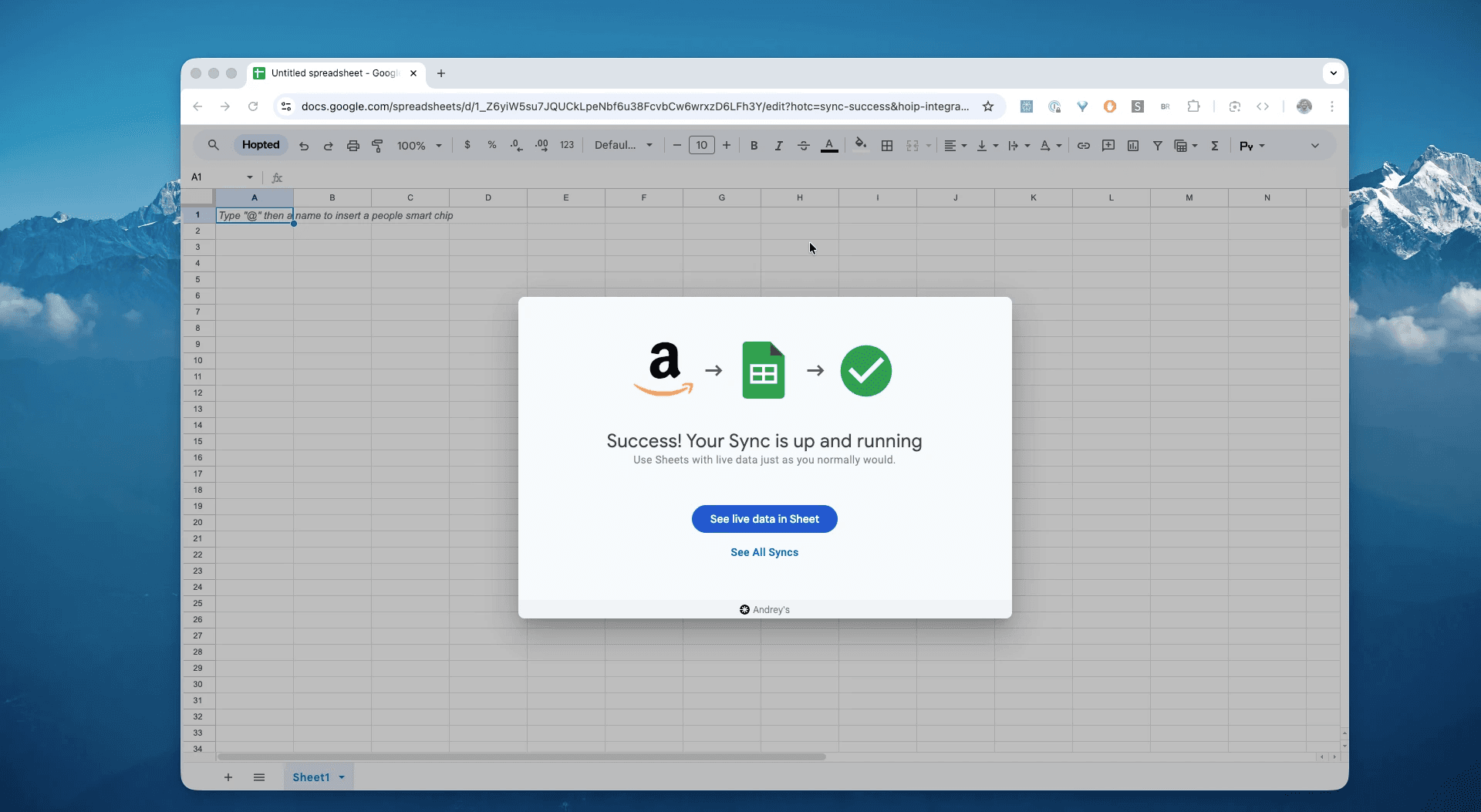
Securely connect your Amazon Seller Central to Google Sheets using Hopted's integration wizard.
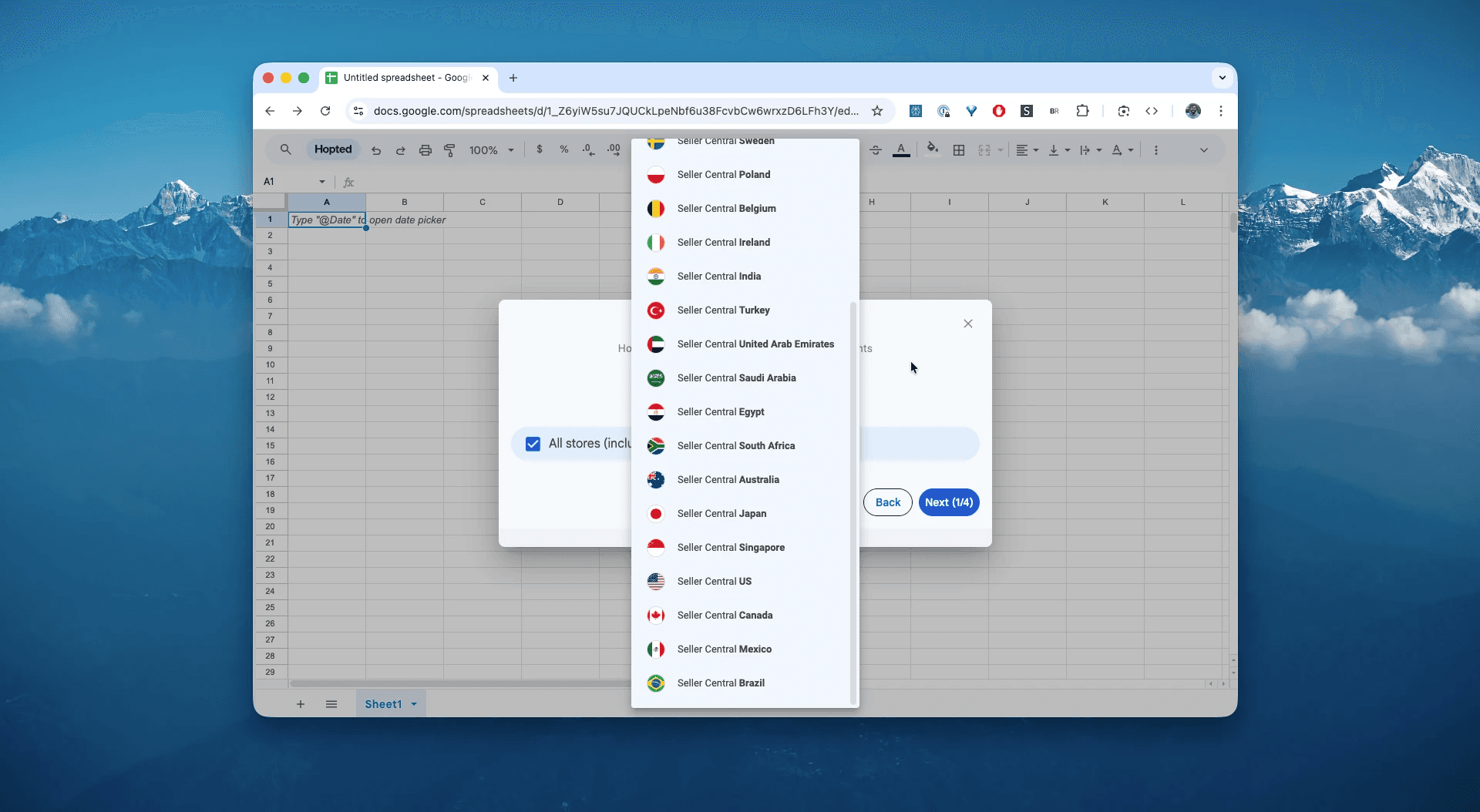
Step 3.
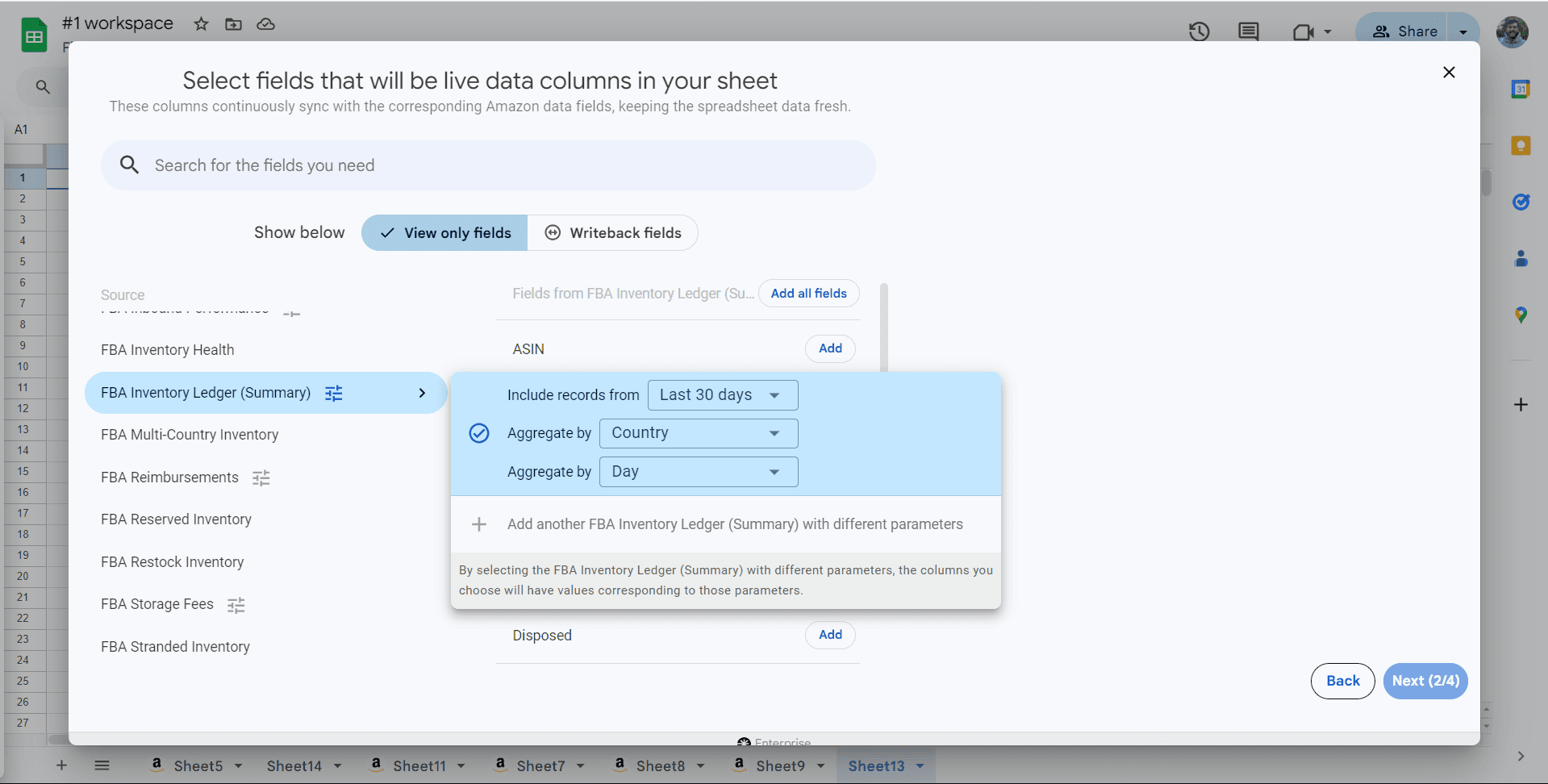
In Google Sheets, from the list of available Amazon Seller Central reports, select "FBA Inventory Ledger (Summary)" for a specific date range and aggregation. This can be as recent as the "Last 7 days" or a custom range going as far back as 35 months. Select Country to display inventory location by country or Fulfillment center to display inventory location by fulfillment center. Select the desired time period for the report, such as monthly, weekly, or daily. For this example, we'll select "Include records for the last 30 days, aggregated by country, daily".
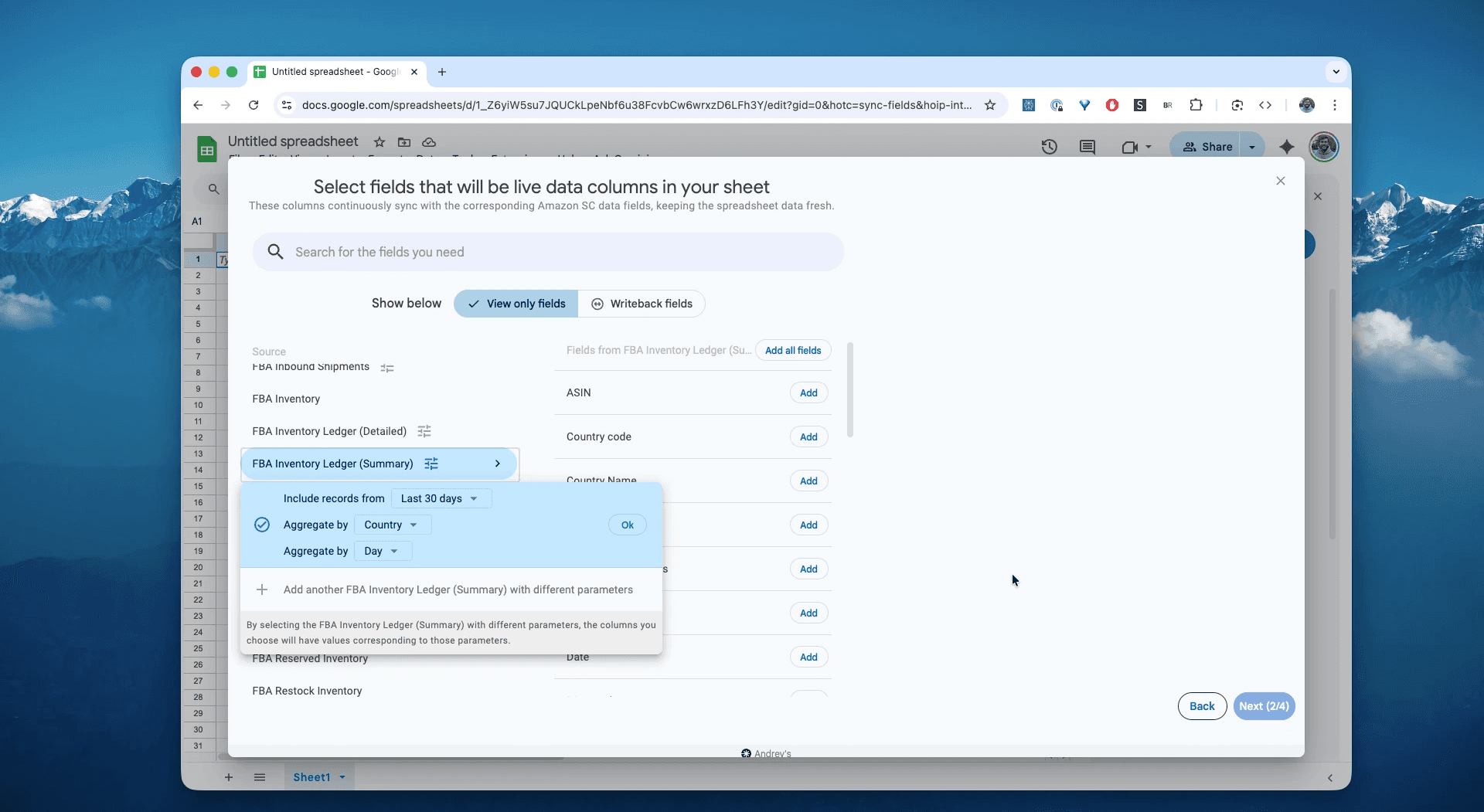
Step 4.
Select columns that you need: FNSKU, Disposition, Damaged, Found, Lost, Location, Starting and Ending Warehouse balance, and other fields.
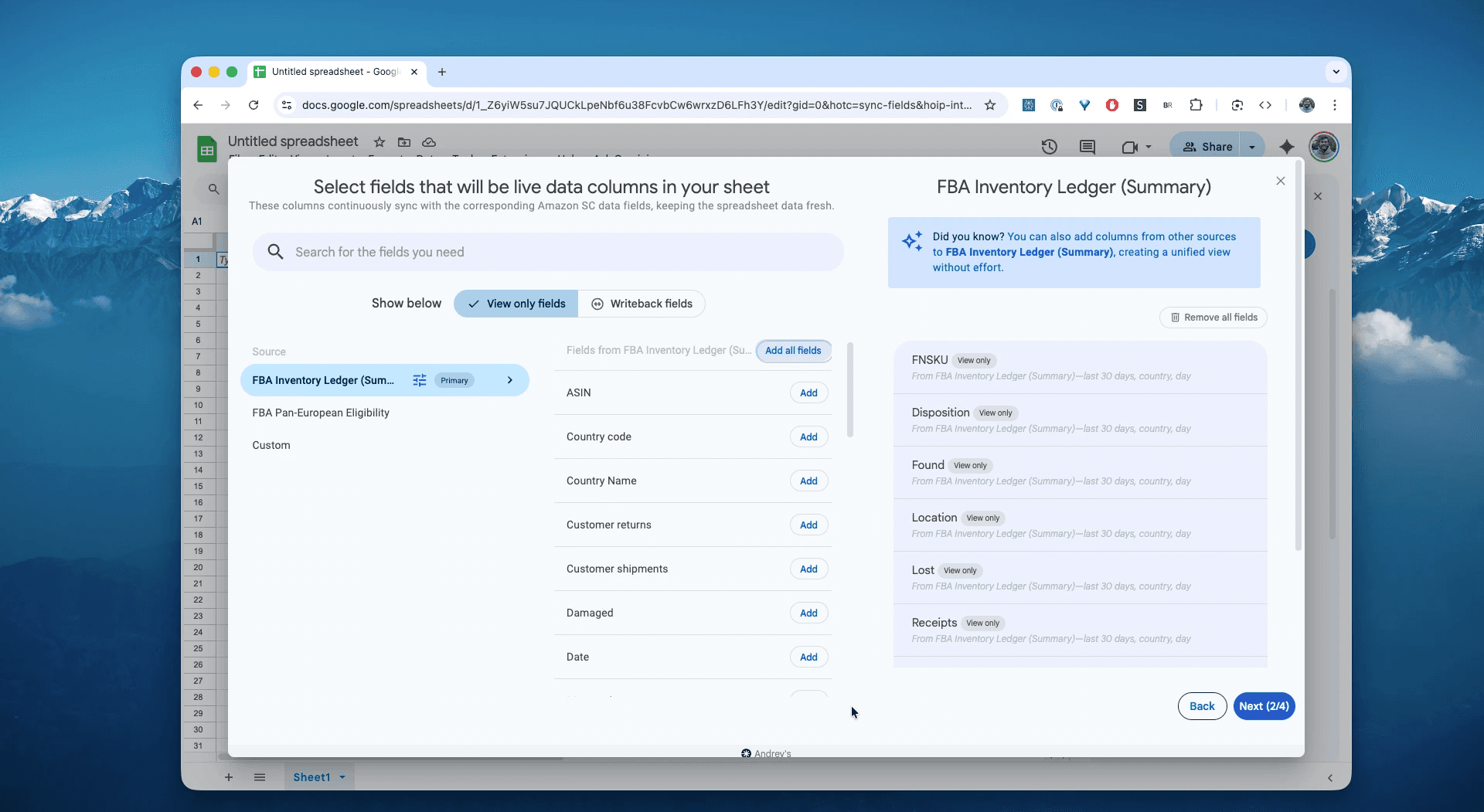
Step 5.
Set your schedule. Choose how often you want to export and refresh your history of FBA inventory events—every hour, every day, or less frequent.
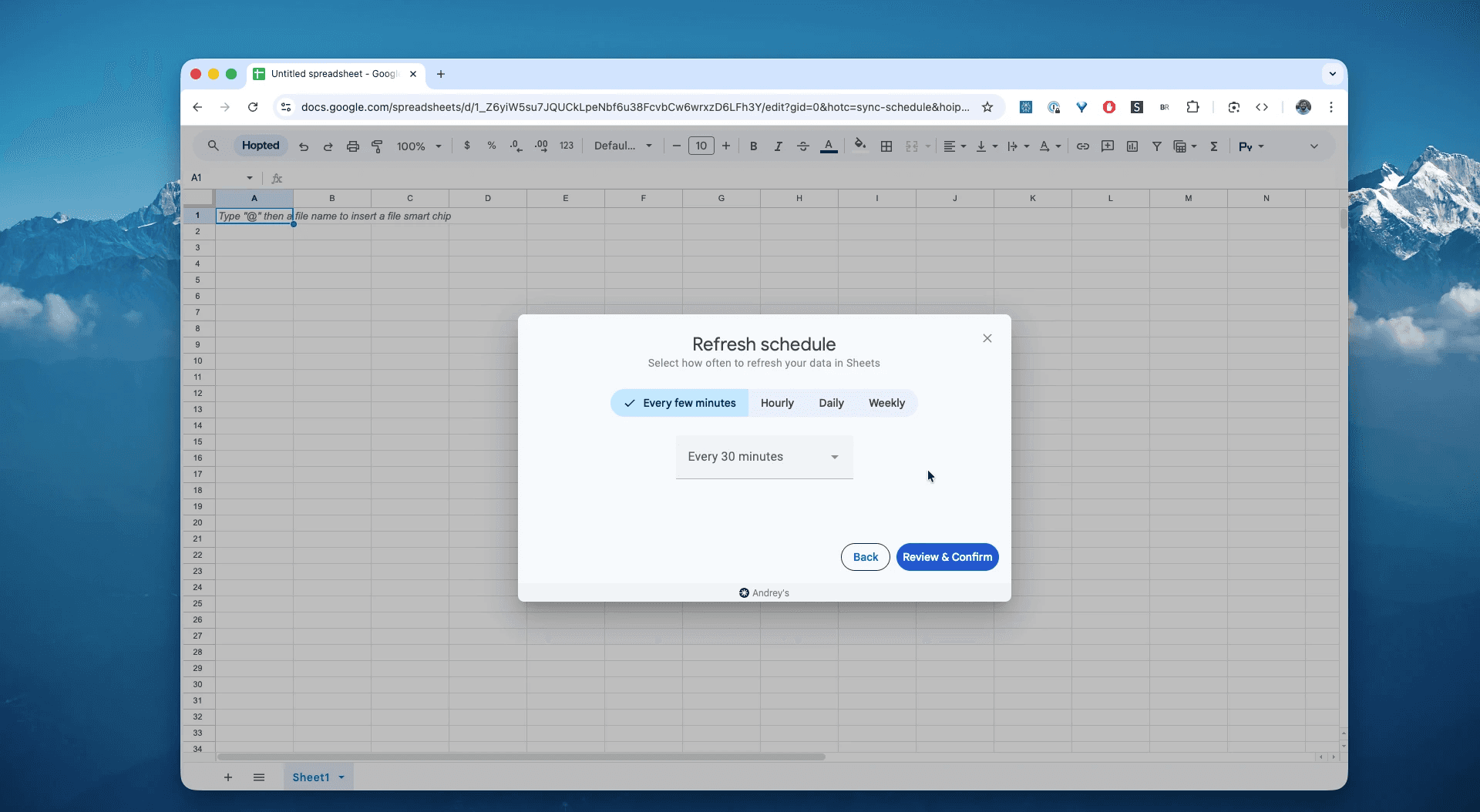
Step 6.
Save your data pipeline. This will export your history of inventory events from Seller Central into spreadsheets instead of dealing with CSVs. The inventory ledger summary in your spreadsheets will be up to data forever.
What is the Amazon FBA Inventory Ledger (Summary) Report?
This report is your "30,000-foot view" of inventory flow. It provides aggregated totals of all inventory movements (like receipts, shipments, damages, and returns) grouped by ASIN, fulfillment center, and date. Instead of seeing 1,000 individual sales, you'll see one line item: "Shipments: -1,000 units." You must use the Summary view for effective, high-level KPI tracking.
Shrink Radar (lost/damaged/found by FC).
Transfer Exposure View (In-transit and net transfers).
Returns Monitor (customer vs. vendor returns trend).
Month-Close Reconciliation Workbook (ready formulas + checks).
This makes it the single source of truth for answering questions like:
What was my total number of units lost or damaged in Q3?Did my customer returns increase or decrease last month?How many units did I receive into FBA versus how many I sold?What is our month-end ending balance by SKU and by Country/FC?How much shrink (lost/damaged) did we incur this week/month, and where?How many units are in transit between warehouses, and is that number rising?What are the net transfers and returns (customer/vendor) by location?-
Where do unknown events spike, and does widening the period reduce them?
How to Analyze & Track Your Inventory Ledger Summary in Spreadsheets
Now that you have a live feed, you can move from data entry to data analysis. This is the real power of analyzing your Amazon Seller Central data in spreadsheets and building your Amazon excel-like template.
Here are 3 Amazon spreadsheet template ideas you can build immediately:
Template 1: Build a Live Inventory Dashboard
This is the #1 use case. By automatically appending data (e.g., every week or month) to one Google Sheet, you can build charts that show your inventory flow over time.
How to build it: Create a Pivot Table.
Rows:
End Date(right-click and "Group" by Year-Month).Columns:
Transaction Type(e.g., Receipts, Shipments, CustomerReturns, WH_Damaged, Inv_Lost).Values:
SUM of Quantity.What it shows you: A clean, month-over-month view of your entire inventory flow. You can instantly see if "Receipts" (inbound) are keeping up with "Shipments" (sales) or if "Damaged" units spiked in March.
Template 2: The "ASIN Health" Tracker
Quickly identify your most problematic products.
How to build it: Another Pivot Table.
Rows:
ASIN.Values:
SUM of Quantity.Filter:
Transaction Type(select only negative events likeCustomerReturns,WH_Damaged,Inv_Lost,Disposed).What it shows you: This instantly reveals which ASINs are costing you the most money in "negative" inventory events. It's not for finding one lost unit, but for seeing that "SKU-ABC" had 10x more damages than any other product last quarter.
Template 3: The "Inbound vs. Outbound" Ratio
A simple, powerful KPI for tracking your Amazon data.
How: Create a Pivot Table.
Rows:
Ship stateorShip countryValues:
SUMofQuantity purchasedandSUMofItem priceResult: A simple report showing your top-performing regions, helping you make decisions about inventory and ad spend.
Common workflows this report unlocks
Month-end roll-forward: Prove beginning → ending by SKU/FC/country for accounting and audits.
Shrink visibility: Track lost/damaged/found and unknown events at an aggregated cadence for CFO-grade dashboards.
-
Network logistics: Monitor transfers and in-transit exposure by FC/country to plan replenishment.
FAQ about FBA Inventory Ledger (Summary)
Q: What’s the difference between Inventory Ledger Summary vs Detailed?
Summary aggregates by time/location for roll-forward balances; Detailed lists per-event movements for forensics. Use both together.
Q: How do I download the Amazon FBA Inventory Ledger (Summary) report?
If you want to extract it manually in Seller Central: Reports → Fulfillment → Inventory Ledger → Summary view; pick Daily/Weekly/Monthly and Country/FC; export TSV. Our recommended way is pulling this report automatically based on the schedule. See the guide above.
Q: What does “In transit between warehouses” mean in the Summary view?
Units moving between Amazon FCs; shown in a separate column, not included in beginning/ending by default.
Q: How do I reduce “Unknown events” in the Inventory Ledger Summary report?
Broaden your date range; unknowns occur when parts of an event fall in different reporting windows.
Q: Can I aggregate by Fulfillment Center instead of Country?
Yes—set aggregateByLocation to FC (default is COUNTRY) when configuring Sync for the Summary view.
Q: How do I track my FBA inventory levels over time?
The most effective method is to sync your Amazon seller metrics from the Inventory Ledger (Summary) report into a single spreadsheet template. This creates a historical database, allowing you to easily build charts to track your Amazon data (like total units damaged, received, or returned) month-over-month.
Q: How is Hopted different from other Amazon seller software?
Most Amazon tools force you into their rigid dashboards and pre-built reports. You have to change your workflow to fit their software. With Hopted is the opposite. It’s a flexible data automation layer that works directly inside your existing spreadsheets (like Google Sheets). Instead of forcing you to learn a new system, Hopted brings all your scattered Amazon data (sales, inventory, orders, etc.) right to you. You can build the fully custom reports and automations you need, not the ones a rigid tool dictates.
Amazon Seller Central report reference
Source note: Links in this reference section point to Amazon Seller Central report and help documentation where available.
The Inventory Ledger report is like a bank statement for your inventory. It provides end-to-end inventory reconciliation capability by showing your starting inventory balance, received inventory, customer orders, customer returns, adjustments, removals, and ending balance.
Use this report to analyze your inventory movements to and from fulfillment centers, including products that are sold, returned, removed, disposed of, damaged, lost, and found. You can view all historical movements of your inventory for 18 months in this report.
To learn more about how to use the Inventory Ledger report in lieu of the Daily Inventory History report, Monthly Inventory History report, Inventory Event Detail report, Inventory Adjustments report, Inventory Reconciliation report, and Received Inventory report, go to Inventory Ledger report: How to find the information you need.
The summary view of the Inventory Ledger report shows a history of inventory events (such as receipts, shipments, and adjustments) by SKU and disposition (such as sellable, customer-damaged, carrier-damaged, fulfillment center-damaged, expired, distributor-damaged, and defective).
The freshness of the data depends on the time period by which the report is aggregated. For Daily, yesterday's data will generally be available within 24 hours. For Weekly, last week's data will generally be available by the end of the day on Monday. For Monthly, last month's data will generally be available by the end of the second day of the month.
Available fields in the report
Date
The date the report was requested
FNKSU
Unique identifier that Amazon assigns to products stored in and fulfilled from an Amazon fulfillment center
ASIN
Unique blocks of 10 letters or numbers that identify items. ASINs are assigned by Amazon. You can find the ASIN on the product detail page.
MSKU
Unique identifier that you assign to products
Title
The title of your product
Disposition
The status of the product, such as sellable or damaged
Starting warehouse balance
Units that were available for this product in fulfillment centers at the start of the time period
Receipts
Units that were received in shipments to fulfillment centers
Customer shipments
Completed deliveries of customer orders that Amazon has fulfilled
Customer returns
Units that buyers have returned to fulfillment centers and that have been returned to your inventory
Warehouse transfer in/out
Aggregated number of units that have been transshipped into and out of fulfillment centers
Found
Units that were missing but have been found and returned to your inventory
Removed
Units that have been removed from your inventory via a removal order and shipped out of fulfillment centers
Lost
Units that are missing from your inventory in fulfillment centers and that may be eligible for reimbursement or for which you have already been reimbursed
Disposed
Units that have been removed from your inventory and disposed of
Other events
Units that were identified as damaged and that may be eligible for reimbursement or for which you have already been reimbursed, as well as all other inventory dispositions that may not be covered under the other definitions
Ending warehouse balance
Units that were available for this product in fulfillment centers at the end of the time period
Unknown events
Units for which the specific event type is not known. This is primarily caused by parts of an event occurring across different reporting time periods. Expanding the reporting time period can reduce the number of unknown event units.
In transit between warehouses
Units that are in transit between fulfillment centers
Location
The country or fulfillment center where your inventory is located, depending on your selection for the Inventory location parameter
How to find the information you need
The Amazon Inventory Ledger report as a replacement for the following reports, which was discontinued January 31, 2023:
- Daily Inventory History
- Monthly Inventory History
- Inventory Event Detail
- Inventory Adjustments
- Received Inventory
- Inventory Reconciliation
Below, we provide details for report that is being discontinued, as well as steps on how to use the Inventory Ledger report to access the information that is contained in the old discontinued Amazon report.
Daily Inventory History report
This report provided daily inventory quantity, location, and disposition. To get that information using the Inventory Ledger report, follow these steps:
- Pick an Inventory Ledger Summary in Hopted
- Under Aggregate report by location, select Fulfillment center or Country.
- In the Aggregate report by time period drop-down menu, select Day.
Monthly Inventory History report
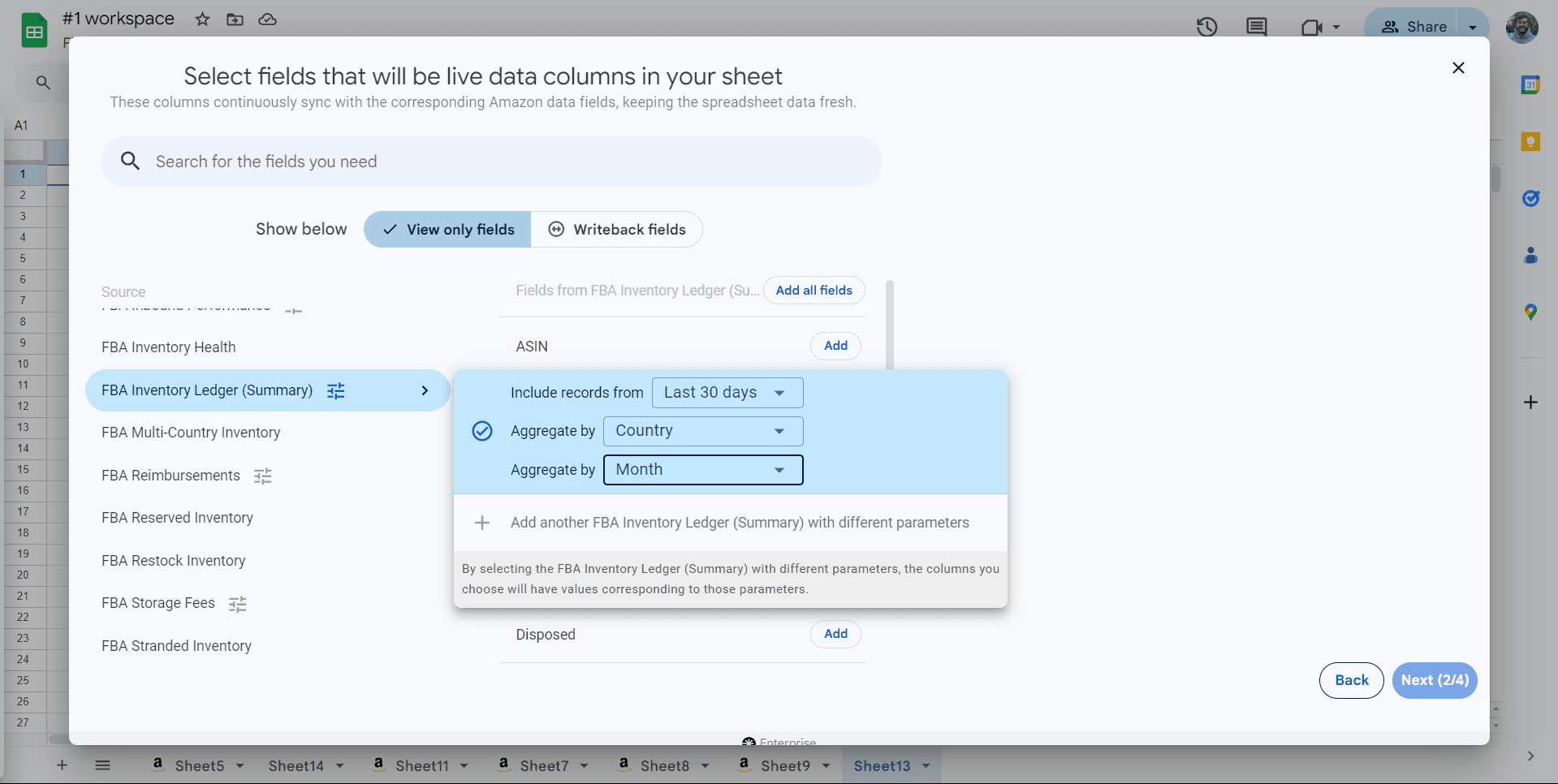
This report provided monthly inventory quantity, location, and disposition. To get that information using the Inventory Ledger report, follow these steps:
- Pick an Inventory Ledger Summary in Hopted
- Under Aggregate report by location, select Fulfillment center or Country.
- In the Aggregate report by time period drop-down menu, select Month.
Inventory Reconciliation report
This report showed your net inventory details for a specific time period. It was used to analyze your inventory movements to and from fulfillment centers, including products that are sold, returned, removed, disposed of, damaged, lost, and found. To get that information using the Inventory Ledger report, follow these steps:
- Pick an Inventory Ledger Summary in Hopted
- Under Aggregate report by location, select Country.
- In the Aggregate report by time period drop-down menu, select Month.
Inventory that is in transit
The Inventory Reconciliation report included In transit quantities in the calculation of Beginning quantity and Ending quantity. The Inventory Ledger report’s Summary view does not include in-transit quantities by default. Instead, the report has an additional column called In transit between warehouses. To get the same beginning or ending quantity as shown in the Inventory Reconciliation report, use the calculations below:
- Inventory Reconciliation report Beginning quantity = Inventory Ledger report Starting warehouse balance + In transit between warehouses at the end of the previous month or date range
- Inventory Reconciliation report Ending quantity = Inventory Ledger report Ending warehouse balance + In transit between warehouses for the current month or date range
Example: Here is an example that compares the Inventory Reconciliation report with the Inventory Ledger report.
Let’s say that you want to get reconciliation data for FNSKU X001SL for the date range 7/1/2022 to 7/31/2022. Go to the Inventory Ledger report, select Summary view, enter X001SL in the Fulfillment network SKU (FNSKU) field, and enter the date range 6/1/2022 to 7/31/2022.