How to Automatically Pull, Sync, and Analyze Your Amazon "FBA Restock Inventory" Report in Google Sheets
Running out of stock on Amazon is catastrophic. You don't just lose the sale today; you lose your organic ranking for weeks. On the flip side, sending too much stock hurts your IPI score and racks up storage fees. It is a delicate balancing act. The FBA Restock Inventory Report is Amazon's automated advice engine. It tells you exactly what to restock, how many units to send, and when to ship them. However, Amazon’s algorithm isn't perfect. This guide shows you how to export this data to build your own logic. We'll cover how to automatically pull your Restock Inventory report directly into Google Sheets to build a live "Replenishment Command Center."

How to Automatically Sync & Import the FBA Restock Inventory Report to Google Sheets (The Hopted Way)
Using an Amazon to Google Sheets integration like Hopted, you set up the connection once, and your data flows automatically.
Step 1.
Install the Hopted browser extension and sign in using your Google Account.
Step 2.
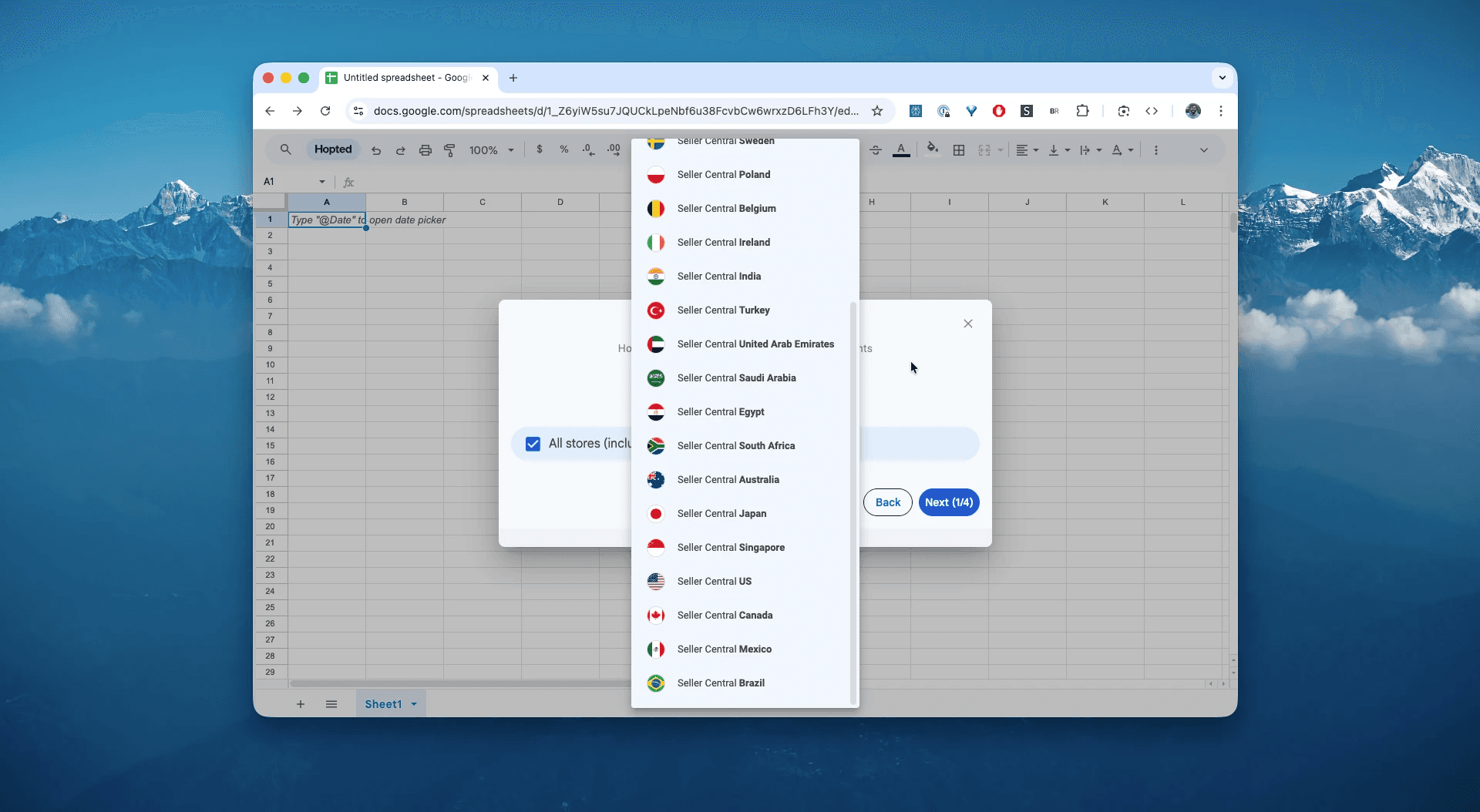
Securely connect your Amazon Seller Central to Google Sheets using Hopted's integration wizard.
Step 3.
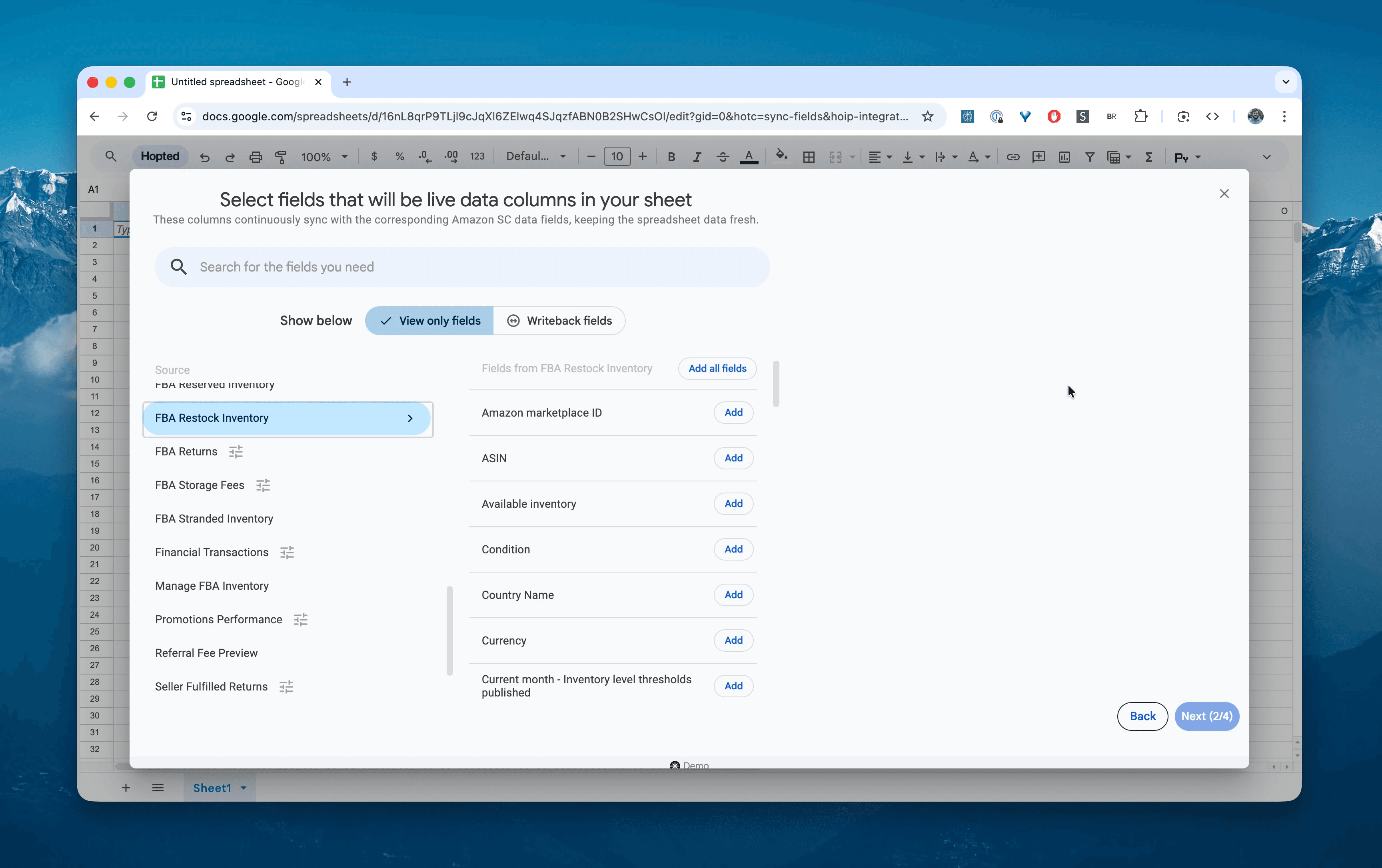
In Google Sheets, from the list of available Amazon Seller Central reports, select "FBA Restock Inventory".
Step 4.
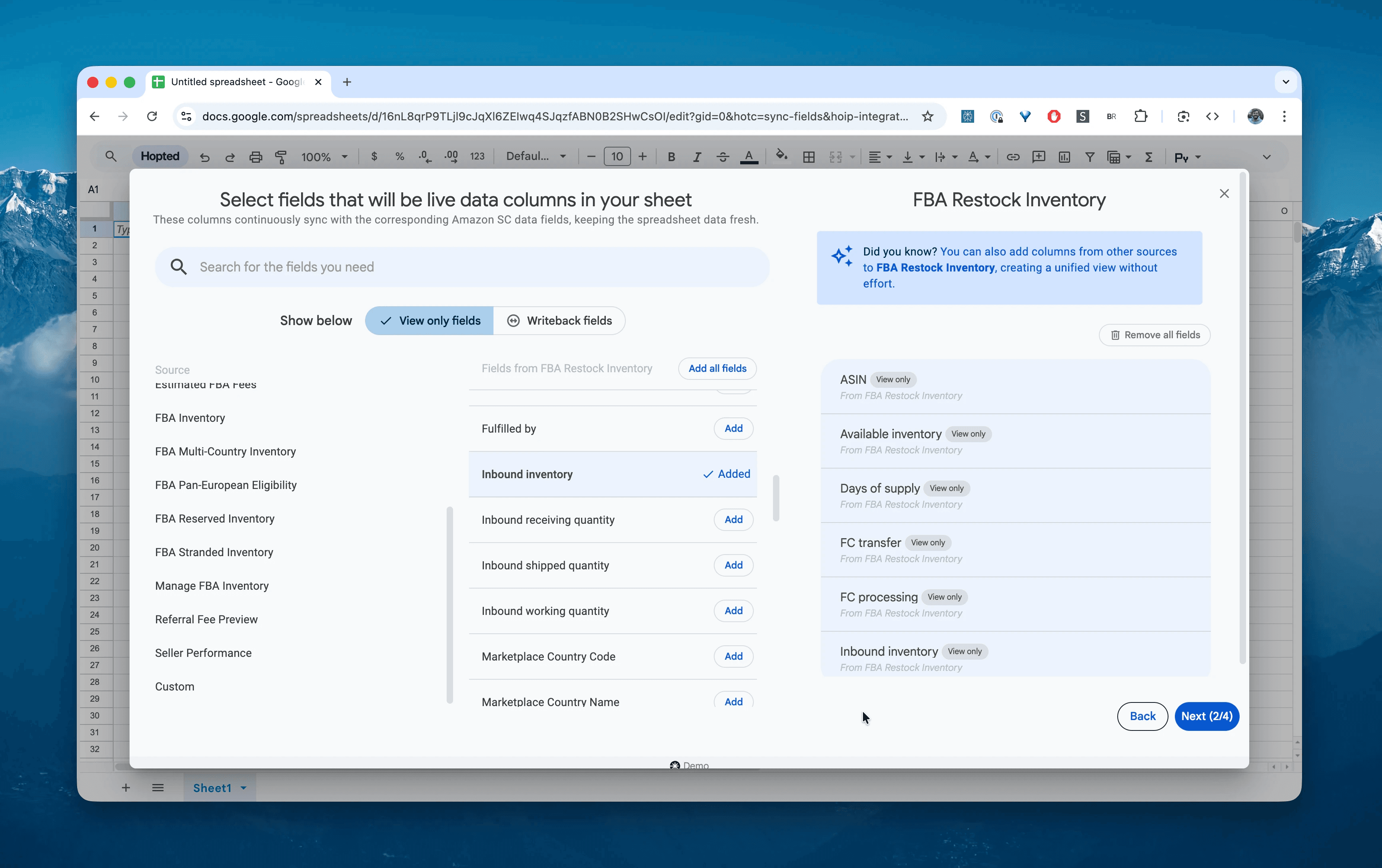
Select the critical columns for planning: Product Name, FNSKU, Days of Supply, Recommended replenishment qty, Recommended ship date, Instock risk, and Sales (last 30 days).
Step 5.
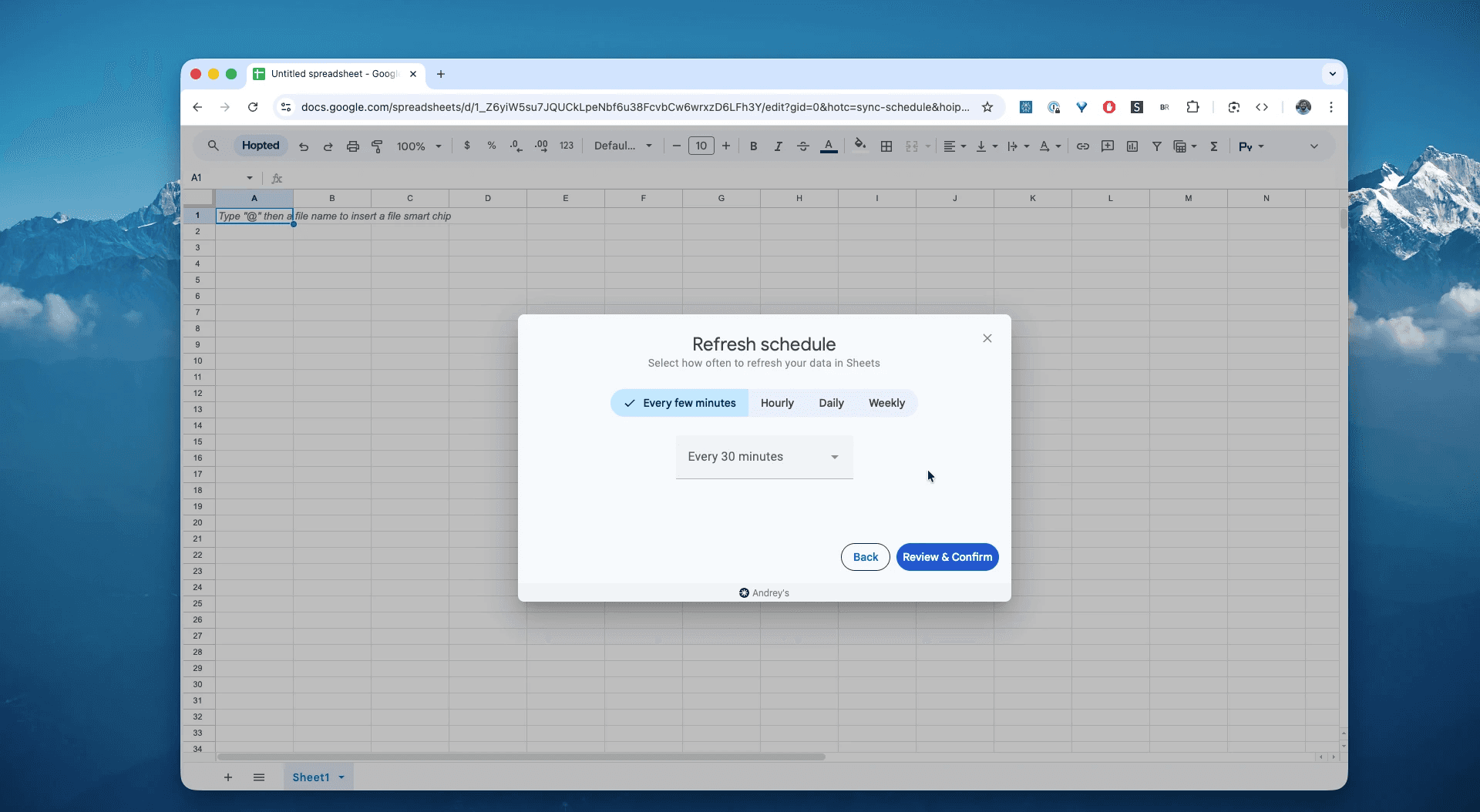
Set your schedule. Choose how often you want to export and refresh your restocking recommendations. We recommend a Daily schedule. A sudden spike in sales today changes your "Days of Supply" instantly, potentially moving your ship date from "Next Week" to "Immediately."
Step 6.
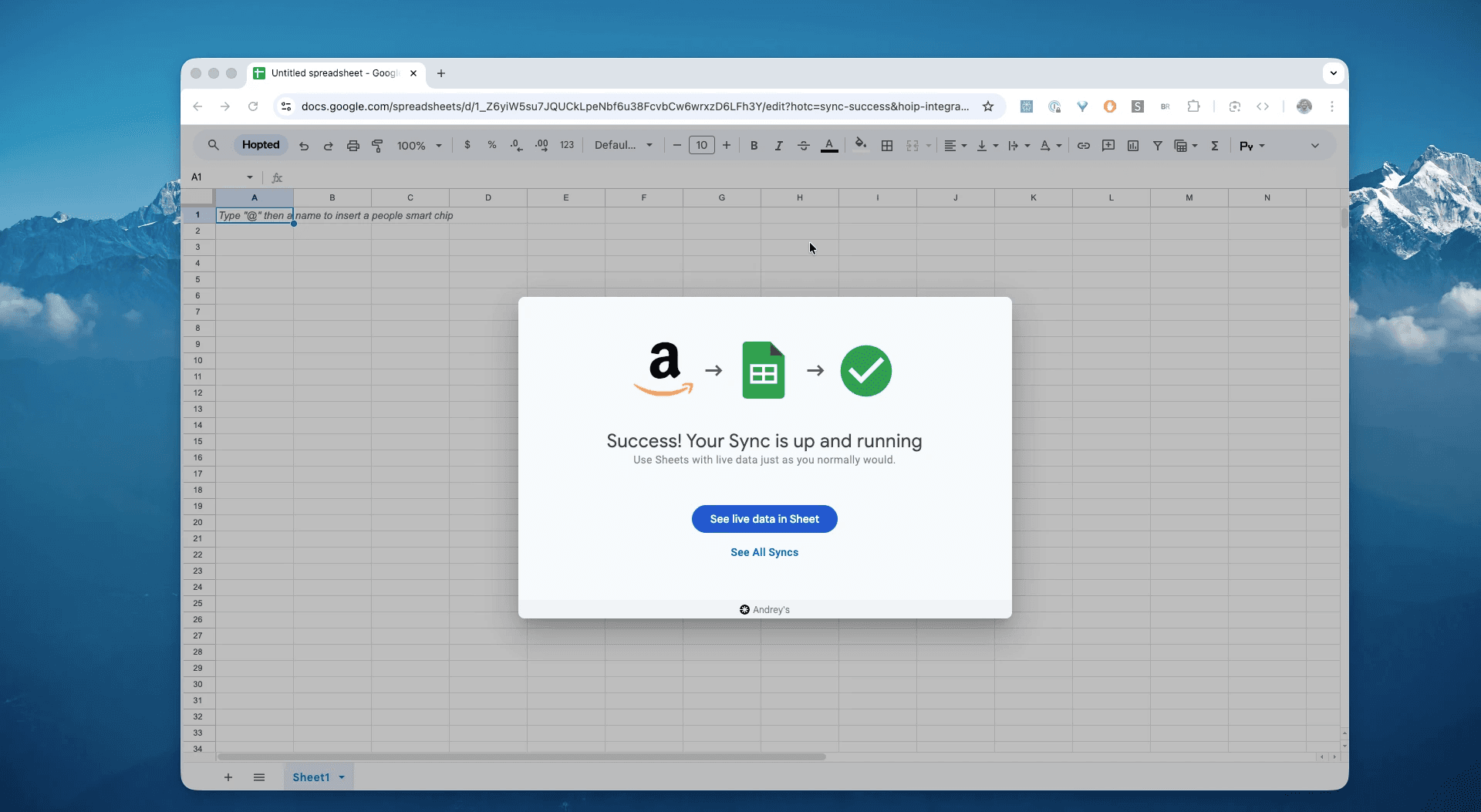
Save your data pipeline. This will export your forecasting data from Seller Central into spreadsheets instead of dealing with CSVs. Your purchasing plan will be up to date forever.
What is the Amazon FBA Restock Inventory Report?
This report is Amazon's "Crystal Ball." Unlike the Manage Inventory report (which tells you what you have), the Restock Report uses your sales history and lead time settings to tell you what you need.
It generates recommendations based on the variables you set in Seller Central (Supplier Lead Time, Restock Frequency) and the variables Amazon measures (Sales Velocity, Seasonality).
It is the primary tool for avoiding the "Red Zone" of stockouts.
This makes it the single source of truth for answering questions like:
Which 5 products are in danger of running out of stock in the next 14 days?Amazon says I have 60 "Days of Supply"—is that enough to cover the upcoming Chinese New Year blackout?What is the exact quantity I need to order from my supplier today to stay in stock?Why is Amazon recommending I restock a slow-moving item? (Identifying algorithmic errors).
How to Analyze & Track Your Restock Needs in Spreadsheets
Now that you have a live feed, you can move from data entry to data analysis. This is the real power of analyzing your Amazon Seller Central data in spreadsheets and building your Amazon excel-like template.
Here are 3 Amazon spreadsheet template ideas you can build immediately:
Template 1: The "Stockout Emergency" List
Amazon's definition of "Low Stock" might be different from yours. Build your own alert system.
Formula: Check
Days of Supply.-
Conditional Formatting:
Red: If
Days of Supply< 15 (Critical Emergency).Yellow: If
Days of Supply< 30 (Order Now).
What it shows you: An instant, color-coded view of your supply chain health. If you see Red, you are likely too late to ocean freight—you need to air freight stock immediately.
Template 2: The "Algorithm Audit" (Man vs. Machine)
Amazon's algorithm tends to be aggressive, often recommending you send too much stock (which earns them storage fees).
-
Ingredients:
Recommended replenishment qty(Amazon's Number).Sales (last 30 days)(Your Reality).
The Check: Create a column called "Reality Check."
Logic: If
Recommended qty> (Sales (last 30 days)* 3), highlight in Orange.What it shows you: Products where Amazon is asking you to send 3+ months of stock. This is dangerous for your IPI score and storage limits. Use your spreadsheet to override Amazon's suggestion and send a smaller, safer amount.
Template 3: The "Cash Flow" Forecaster
our CFO needs to know how much money to set aside for inventory.
Formula:
Recommended replenishment qty*[Your Unit Cost].Pivot Table: Group by
Recommended ship date(Month/Week).What it shows you: "We need $15,000 for inventory purchases next week, and $40,000 the week after." This turns supply chain data into financial planning data.
Common workflows this report unlocks
3PL Management: Share the
Recommended replenishment qtywith your 3PL so they can prep the labor required to label and ship your goods next week.Seasonality Adjustment: In spreadsheets, you can add a "Seasonality Multiplier" column (e.g., x1.5 for Q4) to Amazon's data to create a more accurate forecast than Amazon's basic linear model.
-
Discontinuation Filtering: Amazon will keep recommending restocks for products you want to kill. In Sheets, you can map your "Discontinued List" to this report and filter out those noisy recommendations.
FAQ about FBA Restock Inventory Report
Q: How does Amazon calculate "Days of Supply"? It is calculated as: Current Inventory / Forecasted Daily Sales. Note: Current inventory includes Available + Inbound. Forecasted sales are based on your recent history and seasonality.
Q: Why is the "Recommended Ship Date" in the past? If the date is in the past (e.g., "3 days ago"), it means you are already late. Based on your lead time settings, you will likely run out of stock before the new shipment arrives. You need to expedite shipping immediately.
Q: Can I customize the recommendations? Yes. In Seller Central, you can edit "Lead Time," "Packing Time," and "Restock Frequency" at the SKU level. Hopted pulls the recommendations based on these settings. If the report data looks wrong, check your lead time settings first.
Q: Does this report account for "inbound" inventory? Yes. Amazon considers inventory that is "Inbound Working," "Shipped," and "Receiving" as part of your supply. It will not recommend you order more if you already have a shipment on the way that covers the demand.
Q: How is Hopted different from other Amazon seller software? Most Amazon tools force you into their rigid dashboards and pre-built reports. You have to change your workflow to fit their software. With Hopted it is the opposite. It’s a flexible data automation layer that works directly inside your existing spreadsheets (like Google Sheets). Instead of forcing you to learn a new system, Hopted brings all your scattered Amazon data (sales, inventory, forecasts) right to you. You can build the fully custom forecasting models you need, not the ones a rigid tool dictates.
Amazon Seller Central report reference
Source note: Links in this reference section point to Amazon Seller Central report and help documentation where available.
The Restock Inventory report provides recommendations on products to restock, suggested replenishment quantities, and ship dates.
It helps you, as an Amazon seller, plan how much inventory to send to Amazon fulfillment centers and when to send it. Recommendations show in these columns: Recommended replenishment QTY and Recommended ship date.
Amazon takes into account your sales history, demand forecast and seasonality, and replenishment settings.
It helps you keep track of your inventory so that you can maximize sales by meeting product demand while avoiding overstocking. You can customize your recommendations by configuring your information, such as lead time and case pack quantities.
Although you’re not required to use the replenishment and ship-by recommendations, Amazon encourages you to follow them.
To customize your replenishment settings for an individual SKU in the Amazon Seller Central, do the following:
- On Restock Inventory, select the SKU.
- In the Action column to the right, select Customize SKU settings. The SKU details page will open.
- Adjust your replenishment settings.
To customize your replenishment settings for multiple SKUs in the Amazon Seller Central, do the following:
- On Restock Inventory, click Customize SKU settings at the top right of the page.
- On Inventory product settings, click Generate report.
- Under Report status, click Download after the report is complete.
- Open the report as a text file (Notepad on Windows computers).*
- Select all the text and copy it.
- Create an Excel file, click on the first cell in the upper left corner, and paste in the copied content.
- Adjust your replenishment settings, then save the file.
- Upload the spreadsheet by clicking Upload file.
FAQ
Why does Amazon generate restock recommendations?
Good inventory management can be challenging because the right amount of stock varies based on future demand and the cost of carrying too much or too little inventory.
Based on the information that you provide and estimates of future demand, Amazon suggests a replenishment quantity and ship date for your products. The recommendations are intended to provide you with information that you can use to balance the cost of running out of stock (lost sales) vs. the cost of carrying too much inventory (capital costs and storage fees).
I want to keep my supplier’s name private. Am I required to enter the supplier’s name?
No. You can enter a nickname or code to represent your suppliers. Your restock recommendations won’t be affected.
How do I flag ASINs as not replenishable?
To indicate that a SKU is not replenishable, do the following in the Amazon Seller Central:
- On Restock Inventory, select the ASIN or ASINs that are not replenishable.
- In the Action column to the right for each ASIN, select Hide recommendation. By hiding all SKUs that are associated with an ASIN, you exclude the ASIN from your in-stock rate and estimated lost sales.
Note that hiding replenishable SKUs is not an effective way to increase your Inventory Performance Index (IPI) score for the following reasons:
- Hidden SKUs don’t change your IPI score.
- The SKUs that you hide will no longer show restock recommendations.
- Inaccurate FBA inventory settings may cause you to miss valuable restock opportunities.
Glossary
Days of supply
The estimated number of days your current inventory supply will last based on the projected demand for your product.
Estimated shipment value amount
The estimated value of the inventory that you're restocking for a particular product from your supplier. It’s calculated by multiplying your recommended replenishment quantity with your cost of purchase.
Low stock
This alert identifies items for which the days of supply is less than the lead time. Low stock indicates that replenishment shipments may have to be expedited so that the item doesn’t go out of stock.
Out of stock
This alert shows for items that are no longer in your inventory.
Recommended ship date
The recommended ship date helps you avoid low- or out-of-stock scenarios, based on your estimated days of supply and lead time.
Recommended replenishment quantity
The recommendation for the number of units to be restocked for FBA.
Amazon Seller Central Replenish settings
Enter information in these fields to fine-tune the recommendations for your business.
- Cost of purchase is the per-unit cost that you pay to order the specified product from your supplier.
- Per-unit variable costs is the additional per-unit cost that you pay, not including Amazon fees (for example, shipping cost per unit).
- Supply chain setting indicates how your supply chain is configured for the specified product so that we can calculate the appropriate lead time. Select one of these three choices:
- Supplier ships directly to Amazon indicates that the product is directly shipped from your supplier to Amazon. When you select this supply-chain type, only supplier lead time will be used recommendations.
- Supplier ships to your facility, and then you ship the same amount to Amazon indicates that the full order for the product is shipped from your supplier, then prepped before sending to Amazon. When you select this supply-chain type, supplier lead time plus seller lead time will be used for recommendations.
- Supplier ships supply in bulk to your facility, then you ship units to Amazon as needed indicates that you typically store inventory for this product at your facility and replenish to Amazon directly from that facility. When you select this supply-chain type, only seller lead time will be used for recommendations.
- Your lead time is the number of weeks that are required for you to ship a product from your facility to Amazon.
- Supplier lead time is the amount of time needed for your supplier to deliver a product to your facility.
- Replenishment frequency is the frequency at which you typically replenish the specified product.
- Case pack quantity, also known as order multiple, is the number of sellable units per case or box that is ordered from your supplier.
- Minimum replenishment quantity is the minimum number of units that you send when restocking FBA inventory.
Sales (last 30 days)
The value for the total shipped units of this SKU in the last 30 days. The units shipped data is refreshed daily.